KVM gear sounds simple until you open a catalog. Switches, docks and extenders all promise a tidier desk, yet each one solves a different problem. Pick the wrong type and you own a device that suits somebody else’s setup.
AV Access is a useful brand for learning this, because its range covers every common type. This guide uses it to explain how to choose, what the specs mean, how it stacks up against rivals and how to look after what you buy.
Everything below comes from the brand’s own product details, plus a few general buying habits, not from a bench test of my own. Where something is the brand’s claim, the text says so.
Who is behind AV Access
AV Access describes itself as a Pro AV manufacturer. It reports over 5,000 partners spread over 50-plus countries and regions, with local sales and technical support in North America, Europe and Asia Pacific.
The company’s history starts in 2015 with extenders: HDMI and KVM units that carry video and USB signals across long Ethernet or fiber runs. That is a narrow, technical corner of the market, where added delay or a dropped signal defeats the whole point of the product.
AV Access also holds contributing membership in the HDBaseT Alliance, which maintains the HDBaseT standard that many long-distance extenders build on.
The brand states its goal as “quality-assured and well-designed” AV equipment. The catalog stays within video and USB connectivity: extenders, switches, docks and gear for video walls, with no unrelated product lines.
The four product families
At a glance, the AV Access catalog can look like one long list of similar boxes. It is really four different families, and the right one depends on the problem you are solving.
KVM switches
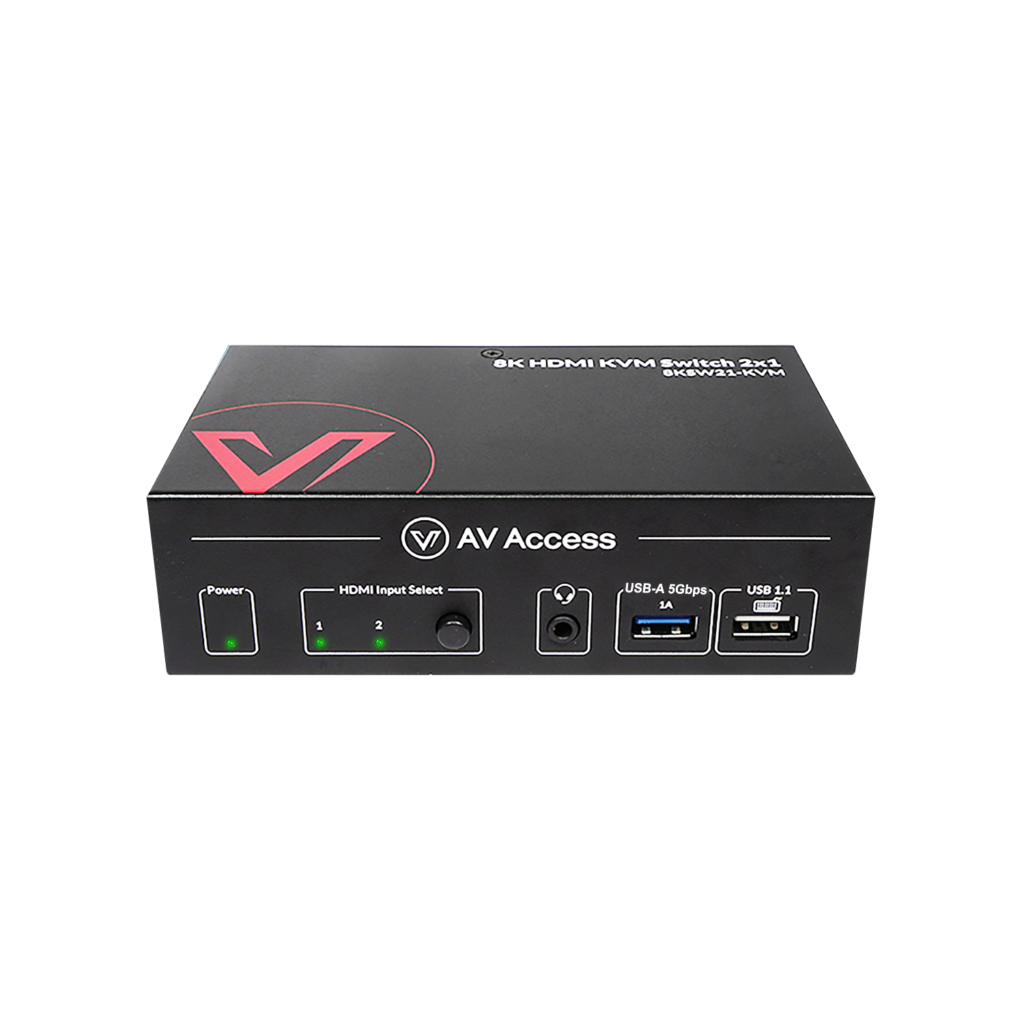
The KVM switch is the simplest of the four. Two or three computers share one keyboard, mouse and screen, and you choose the active machine with a hotkey or a button on the box.
The range includes a two-computer, one-monitor model built for gaming, with HDMI 2.1 and support up to 10K at 120Hz, and it extends to a triple-monitor model with five USB ports for power users.
KVM and USB extenders
Extenders move HDMI and USB signal between two points that sit too far apart for an ordinary cable. The brand’s HDMI KVM extenders carry 4K video and USB 2.0 over standard Cat5e, 6, 6a or 7 Ethernet cable for roughly 330 to 390 feet, and the brand says they add no latency.
The 4KEX100-KVM model also includes independent EDID management, RS232 control and Power over HDBaseT. That mix looks more like commercial installation gear than home electronics. A simpler USB-only extender skips video and stretches four USB 2.0 ports over Ethernet cable.
Docking stations
Docks are the newest family in the range. Each pairs a KVM switch with USB-C charging, wired internet and USB hubs, and a few include an SD card reader.
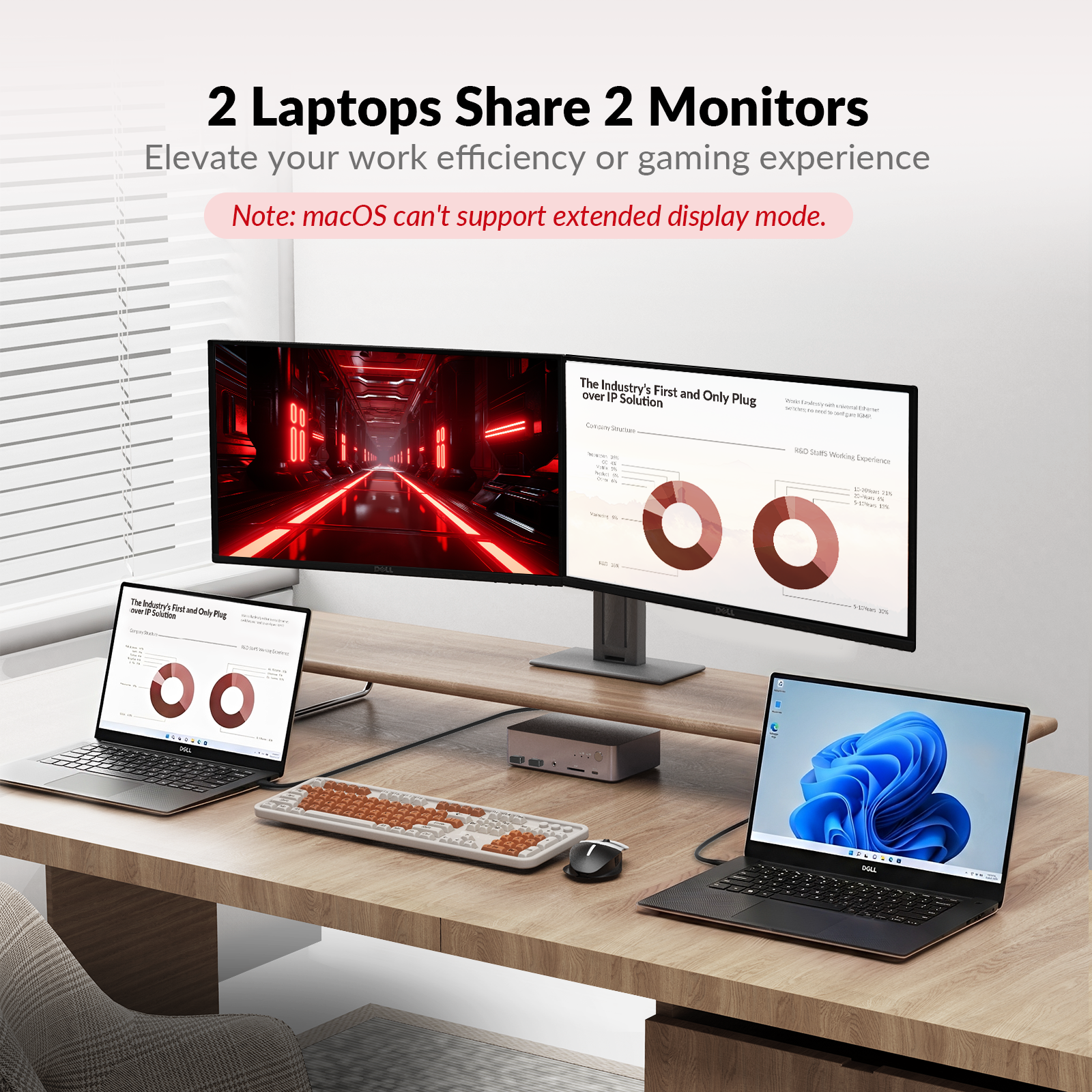
One unit can serve two laptops, so neither needs a dock of its own.
AV-over-IP
This is the smallest and most ambitious family. It targets professional installers working on commercial projects, not home offices. A 4K HDMI-over-IP decoder, for example, supports video wall layouts up to 8×8 across ordinary network infrastructure instead of dedicated AV cabling.
It is a specialist pick, so do extra homework if you have never bought AV-over-IP gear before.
Match the gear to your desk
Count your computers and monitors
This is the biggest fork in the lineup. Write down how many computers you need to share and how many screens you want to run.
- Two computers, one monitor: the 8K KVM Switch with HDMI 2.1, built with gaming in mind
- Two computers, two monitors: the KVM Switch Dock or the Docking Station KVM Switch, both made for a full two-laptop desk
- Two computers, three monitors: the triple-monitor 8K models, aimed at trading desks and creative workstations
Note your monitors’ resolution and refresh rate too. The gaming switch lists support up to 10K at 120Hz and 1080p at 240Hz, but your screens have to be able to use those modes.
Check the distance
A switch works best when the computers share a desk or sit close to it. A machine in another room, a server closet or elsewhere in the house calls for an extender.
For a long run between rooms, the 4KEX100-KVM is the relevant model. The brand lists 4K video plus USB 2.0 travelling up to 330 feet on Cat6 cable, along with RS232 and Power over HDBaseT. Those extras suit server rooms and control systems more than a home desk. If you only need peripherals to reach a distant spot, the USB-only extender manages about 196 feet.
Measure the real cable route, corners included, and leave some slack at each end. A route that looks short on a floor plan is often longer once it goes around furniture.
Do you need a full dock?
A plain KVM switch does one job. A docking-style unit does more, because it can take over from a laptop charger, a wired network adapter and a USB hub.
Anyone who already owns a dock and charger they like only needs a standalone switch. For a desk built from scratch, one docking switch can replace buying a switch and a dock separately.
The two-laptop, two-monitor model shows what the category offers. Each laptop gets its own USB-C input with 60W power delivery. Two HDMI ports feed the monitors, and the unit adds Gigabit Ethernet, two USB-A ports at 5Gbps and two USB 2.0 ports.
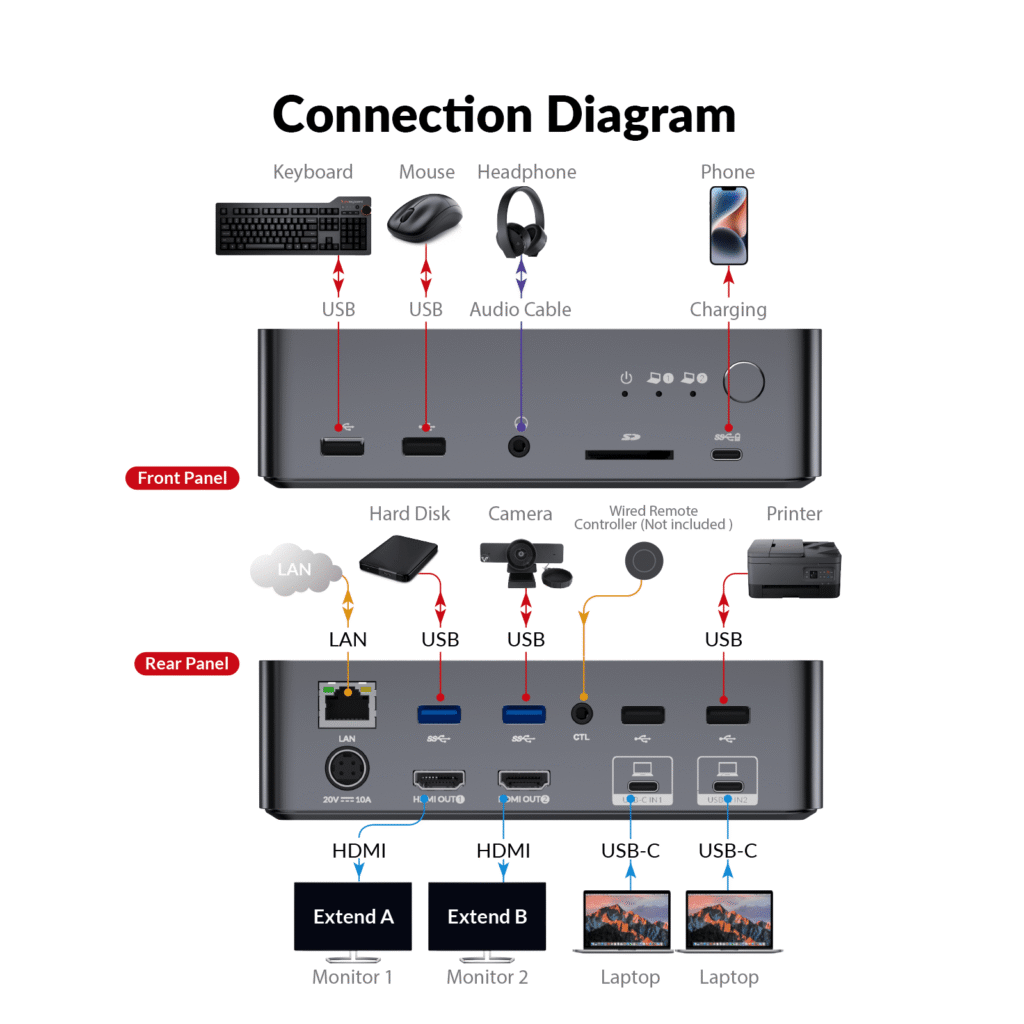
The brand lists EDID emulation and automatic PC wake for quick switching, with up to 2K at 144Hz or 1080p at 240Hz per display. On the front panel sit the keyboard and mouse ports, a headphone jack, an SD card slot and a switch button, with LED lights showing which laptop is active.
For buyers who want more throughput, the 8K KVM Switch Docking Station goes up to 8K at 60Hz and 4K at 165Hz. It adds 100W power delivery, a four-port 10Gbps USB-C hub and an SD card reader.
For a closer look at the two-laptop model, read our full verdict on the AV Access KVM Switch Dock.
To see the brand’s current range, open AV Access’s storefront on Amazon. The link opens Amazon in a new tab.
Check your laptop before you buy
The first check is your laptop’s USB-C port. For a dual-monitor dock it must carry video and also handle MST, and some laptops offer only one of the two.
Mac laptops
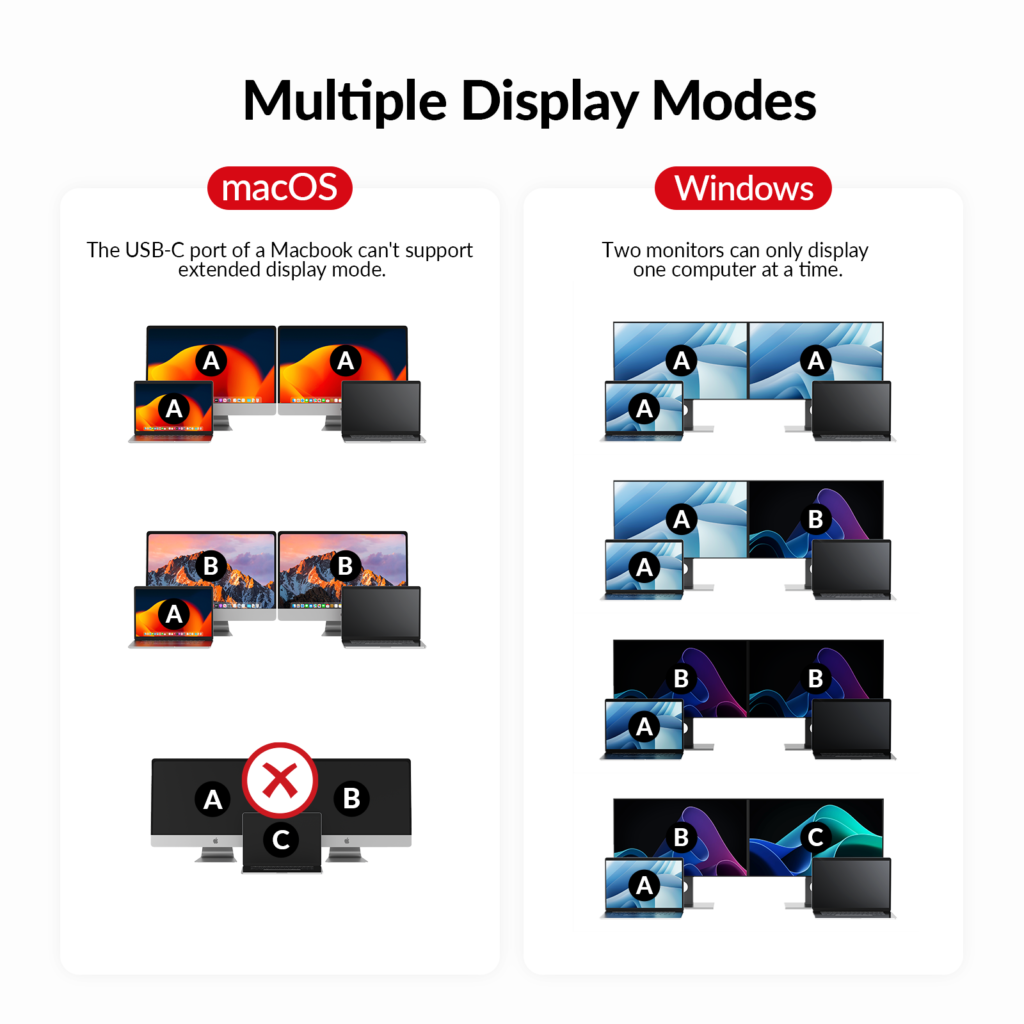
On a Mac, USB-C MST docks run into a macOS restriction. AV Access says the system offers mirror mode only, so two monitors show the same image instead of one extended desktop. The hardware is not the cause, and Windows laptops are unaffected. A Mac owner who wants two separate screens should weigh this before choosing a model.
Monitor sizes
5K monitors are outside what the two-monitor dock supports, and a 49-inch ultrawide is held to 3840×1080 rather than its native resolution.
Heat
AV Access notes that charging a laptop continuously through the dock can make the laptop run warm. The brand does not present this as a fault, and moving 60W through a compact case naturally gives off some heat.
A few minutes with your laptop maker’s spec page answers most of these questions before you order.
How AV Access compares with rivals
TESmart is a rival KVM brand that makes a natural comparison. Both brands pitch to the buyer who wants a switch that works without hunting for drivers.
The main difference is philosophy. AV Access leans toward all-in-one integration, with switching, charging, Ethernet and USB expansion in a single box. TESmart tends to stay closer to a traditional switch, a dedicated switching unit with less emphasis on docking features.
Neither route wins outright. The better fit depends on whether you prefer one device that covers everything or a plainer switch used with a dock you already have.
AV Access has the edge when you want one box to retire several desk accessories. TESmart makes more sense when you already own docking hardware and only need tidy switching, without charging and hub features you would not use. In that case, put TESmart’s matching model next to the AV Access model you are considering.
CKL is a third rival. Its positioning centers on broad compatibility, with support for many resolutions and for wired or wireless keyboards and mice. Docking is less of a focus for it than for the other two brands.
Whichever you shortlist, start from what you need rather than the name on the box.
Buying, returns and warranty
Where you buy affects your warranty. An unauthorized third-party seller can leave you without coverage, even when the unit in the box is genuine.
- avaccess.com: the manufacturer’s own store, where the full range is listed and warranty registration takes place
- Amazon: the brand operates an official storefront there
- Newegg: an official brand store exists on this retailer as well
- Walmart: some products, docking stations among them, are sold through the Walmart marketplace
On Amazon, check the byline under the product title. A listing sold by the brand reads “Visit the AV Access Store” and leads to a storefront bearing the AV Access logo, while a seller with a generic name should prompt a second look.
Compare model numbers as well. The brand names its products consistently, with examples like 4KEX100-KVM and KD-E20, so the number in a listing’s title should match the one on the box in the photos. Other red flags are a missing brand-store link, generic stock pictures in place of real product photos, and a seller name unrelated to the manufacturer.
AV Access sets a 30-day window, counted from delivery, for free returns and exchanges on eligible orders. Who pays to send the item back depends on why it is going back: you cover shipping for anything other than a defect, while the brand covers it for a confirmed defect in eligible regions. After the return arrives and is inspected, the refund is processed within 14 business days.
The main unit of every product has a one-year warranty that starts on the purchase date, with cables, remote controllers and power adapters excluded. A longer term is possible: a buyer who registers as a partner on avaccess.com and gets approved can receive two years on eligible products ordered directly from the brand’s site. Webcams, speakerphones and accessories are left out of that extension.
The brand’s shipping policy works like this: orders go out within 24 hours of payment, a tracking number follows by email the next day, and delivery takes 3 to 5 business days after that. Retailers may set their own terms, so read the policy on the listing you buy from.
Setup and care tips
Upkeep for AV Access gear comes down to testing, power, cabling and placement, and the same habits apply across the range.
Test early and label everything
Label each cable at both ends during setup. Then connect every device you plan to use and try each laptop in turn during the first days, while the return window is still open.
Should a genuine defect appear later, the one-year warranty on the main unit applies. A setup problem does not count as one.
Power
Use the adapter that came in the box. The brand supplies each dock or switch with one matched to the unit’s charging output, commonly 20V and 10A on the higher-wattage docks. A generic substitute may leave laptops undercharged and could also trip the unit’s protection circuit.
Cabling on extender runs
Extenders depend on the cable between their two boxes. Confirm that its rating matches both the distance and the category in the extender’s specs, and replace any run that looks damaged. A cable that falls short of the spec can cause dropouts well after the setup first appeared to work.
Avoid tight bends right at the connectors, especially where the cable passes into a wall or rack, and leave a loose loop of slack at each end to relieve the strain.
Placement and airflow
Many of the brand’s docks and switches use a metal case, which can help carry heat away, but only when air can reach it. Leave a few inches of clearance beside it, on one side at minimum, and keep the unit out of drawers, closed organizers and piles of cables. That matters most when a laptop stays on charge overnight or while nobody is at the desk.
Laptop drivers
The brand builds its products to be plug and play, so nothing needs installing on the dock or switch itself. The laptop is another matter, because its USB-C, graphics and display drivers influence how well it works with a dock. When a screen starts to flicker or drop out after a stretch of normal use, install any pending Windows or graphics driver update before concluding that the hardware has failed.
Frequently asked questions
Is AV Access a legitimate brand?
Its record points that way. AV Access has made extenders and KVM products since 2015, sits in the HDBaseT Alliance as a contributing member, reports more than 5,000 partners, and sells through its own site and official stores on Amazon and Newegg.
Do the switches and docks work with a Mac?
Mostly. The catch applies to dual-monitor docks that use USB-C MST: macOS can mirror the picture onto both screens but cannot extend the desktop across them. The limit sits in the operating system, and Windows laptops do not run into it.
Do I need to install drivers?
Not for the AV Access device itself. The brand describes its switches, docks and extenders as plug and play, working across Windows, macOS and Linux. Keeping your laptop’s own drivers current is a separate task, covered in the care tips above.
What is the difference between a switch and an extender?
A switch is for computers parked near each other, all sharing one keyboard, mouse and monitor setup. An extender covers the opposite case, where a computer sits too far away for an ordinary cable, so its signal travels over Ethernet or fiber instead.
Are the docks good for gaming?
Gaming is the job of the HDMI 2.1 8K KVM Switch, which lists up to 10K at 120Hz and 1080p at 240Hz for high-refresh monitors. The docking models are aimed at office desks instead.
Will an extender slow my video down?
AV Access presents its extenders as zero latency. That is the brand’s claim, so check it against your own setup during the return window.
How long is the warranty, and can it be extended?
The main unit is covered for one year. Eligible products can reach two years if you register as a partner on avaccess.com and are approved, with webcams, speakerphones and accessories excluded.
Who pays for return shipping?
That depends on the reason. You pay when the item goes back for any cause other than a defect. A defect confirmed within the 30-day window shifts the cost to AV Access in eligible regions.
The bottom line
Choosing AV Access gear comes down to a short sequence. Count your computers and monitors, check the distance between them, decide whether you want a dock built in and confirm that your laptop’s USB-C port can handle video.
For a Windows desk with two laptops and two monitors, the docking switch is the most direct answer. For gaming on one screen, the HDMI 2.1 switch fits better. For long cable runs, an extender is the right tool. Mac users who need extended screens should note the brand’s own mirror-mode warning first.
If the dock matches your desk, you can browse AV Access’s storefront on Amazon to check the current price on Amazon before you decide. The link opens Amazon in a new tab.